
Applicare agent installation using same binaries

For deploying Generic agent and JBoss agent in the same machine.
If the Agent is running in a different machine from the one running Applicare server, please execute the following steps.
- Run build_agent.bat or build_agent.sh (depends upon the OS) script in Applicare server directory.

- Enter option 7 and press enter.
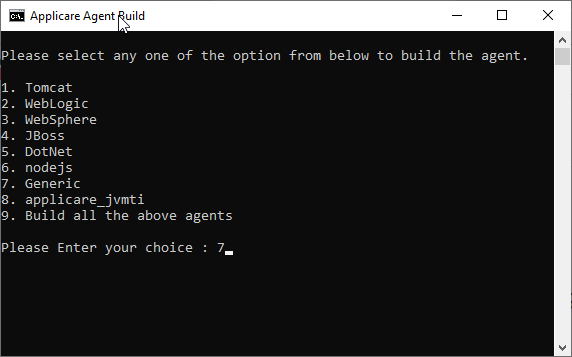
- It will build the agent_Generic.jar file as you see in the below image.

- Copy the agent_Generic.jar file to the Agent machine and place it in the same directory location. If the same location is not available then please create some other directory and place the jar file.
E.g.
if you installed Applicare server in C:\Applicare, create a directory as C:\Applicare in the Agent machine and place the agent_Generic.jar there.
- Run the command jar –xvf agent_Generic.jar in a command prompt from the newly created directory to extract the jar.
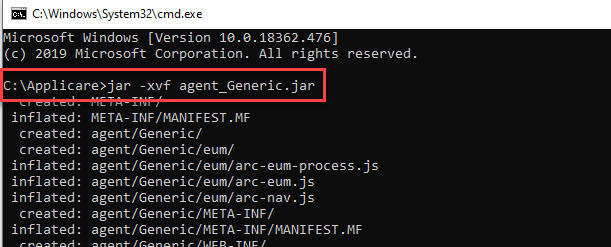
Binary files extraction are completed successfully.
To Deploy Generic Agent
Please follow the steps from "Check the ARCTURUS_HOME environment variable" in the below Link
To Deploy JBoss Agent
Go to Applicare server installed machine and copy the "applicare_agent.war" file from the path "<ApplicareServerDir>\agent\JBoss" to the agent machine and place it in the directory <ApplicareAgentDir>/agent/JBoss. You need to create the JBoss directory inside the agent folder.
Check the ARCTURUS_HOME environment variable
- Open the <ApplicareAgentDir>/scripts/setJBossAgentEnv.bat or setJBossAgentEnv.sh file (depends upon the OS) and check ARCTURUS_HOME environment variable and the <ApplicareAgentDir> is same.
- If the ARCTURUS_HOME and the <ApplicareAgentDir> is different please modify the ARCTURUS_HOME environment variable to the <ApplicareAgentDir> path.
- In <ApplicareAgentDir>/scripts/setJBossAgentEnv.bat or setJBossAgentEnv.sh add the package org.hyperic.sigar to the jvm argument -Djboss.modules.system.pkgs, if it is already not exists.

Please follow the steps from "Deploy war in JBoss server" in the below link.
Please sign in to leave a comment.
Comments
0 comments