
Applicare agent installation on JBoss server

1. If the JBoss server is running in a different machine from the one running Applicare server, please execute the following steps.
- Run build_agent.bat or build_agent.sh (depends upon the OS) script in Applicare directory and select option for JBoss to build agent_JBoss.jar file.
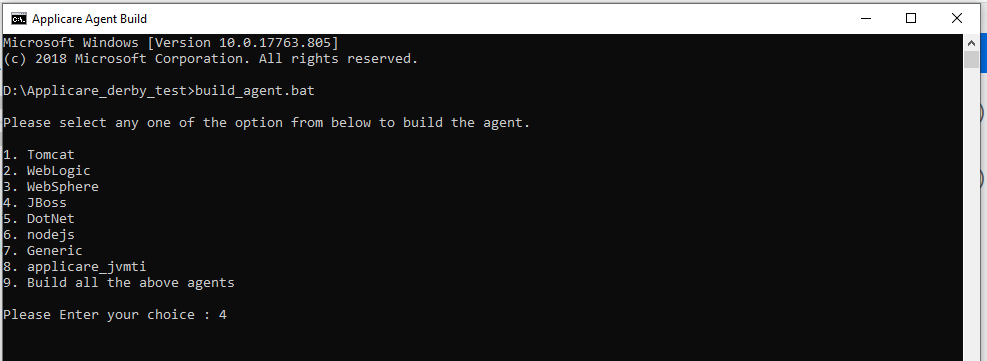
- Copy the agent_JBoss.jar file to the machine running the JBoss server and place it in the same directory location. E.g. if you installed Applicare in C:\Applicare, create a directory as C:\Applicare in the machine running JBoss server and place the agent_JBoss.jar there.
- Run the comman jar –xvf agent_JBoss.jar in a cmd prompt from the newly created directory to extract the jar.
- If your extracted folder path is different from the original Applicare installation directory, edit <ApplicareAgentDir>/scripts/setJBossAgentEnv.bat or setJBossAgentEnv.sh (depends upon the OS) and modify the ARCTURUS_HOME environment variable to point to the extracted directory path.
- In <ApplicareAgentDir>/scripts/setJBossAgentEnv.bat or setJBossAgentEnv.sh add the package org.hyperic.sigar to the jvm argument -Djboss.modules.system.pkgs, if it is already not exists.

- Change the -Dsigar.nativeloader=false to -Dsigar.nativeloader=true in the setJBossAgentEnv.sh file for Unix Systems.

2. Deploy war in JBoss server
- Shutdown the JBoss server and deploy applicare_agent.war located in <ApplicareAgentDir>\agent\JBoss directory.
- Check the run.bat or run.sh file and edit standalone.bat / standalone.sh or domain.bat / domain.sh (depends upon the jboss start mode), if you are using startup scripts to start JBoss.
On Windows Systems
set SERVER_NAME=<unique name to identify the server>
call <ApplicareAgentDir>\scripts\setJBossAgentEnv.bat
On Unix Systems
export SERVER_NAME=<a unique name to identify the server>
. <ApplicareAgentDir>/scripts/setJBossAgentEnv.sh
3. If you are starting JBoss as a Windows service add the following to your service’s Java Options section and replace the values in bold with applicable values.
- -Dserver.name=<unique name to identify the server>
- -javaagent:<ApplicareAgentDir>\applicare-tomcat-aspects.jar=verbosity=0,logfile=false
- -Darcturus_home=<ApplicareAgentDir>
- -Djava.library.path=<ApplicareAgentDir>\bin
4. Make sure the JVM can increase Perm gen to at least 256MB by adding -XX:MaxPermSize=256m to startup arguments. Server might fail to start with Applicare agent if the perm gen size is too low.
5. Start the JBoss server.
6. Configure the server in Applicare console as shown below
a. Click Add Server button in the default dashboard

b. Provide the IP and port the server is listening on and click Apply.
Please sign in to leave a comment.
Comments
0 comments