
Remote Commands

Remote Commands can be used to execute scripts or processes on servers where Applicare agents are running. They can be configured to run as specific users (On Unix based systems where sudo is available) and scheduled to run periodically using cron like schedules.
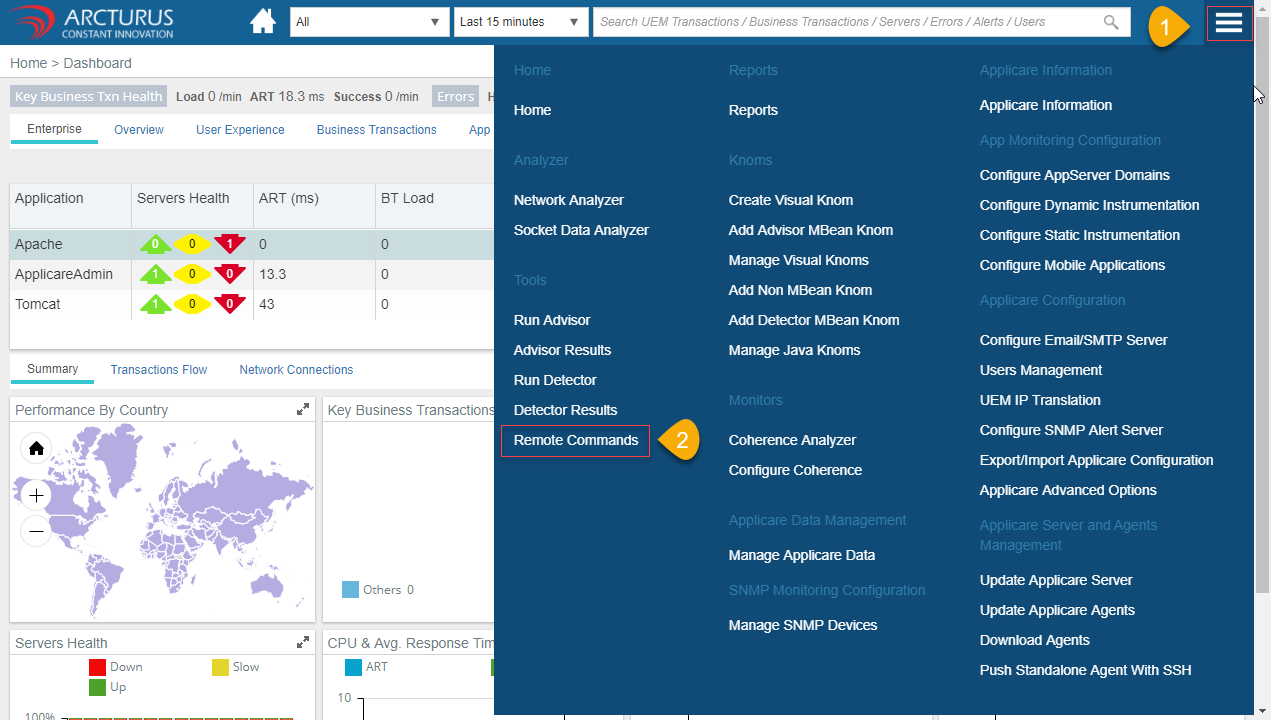
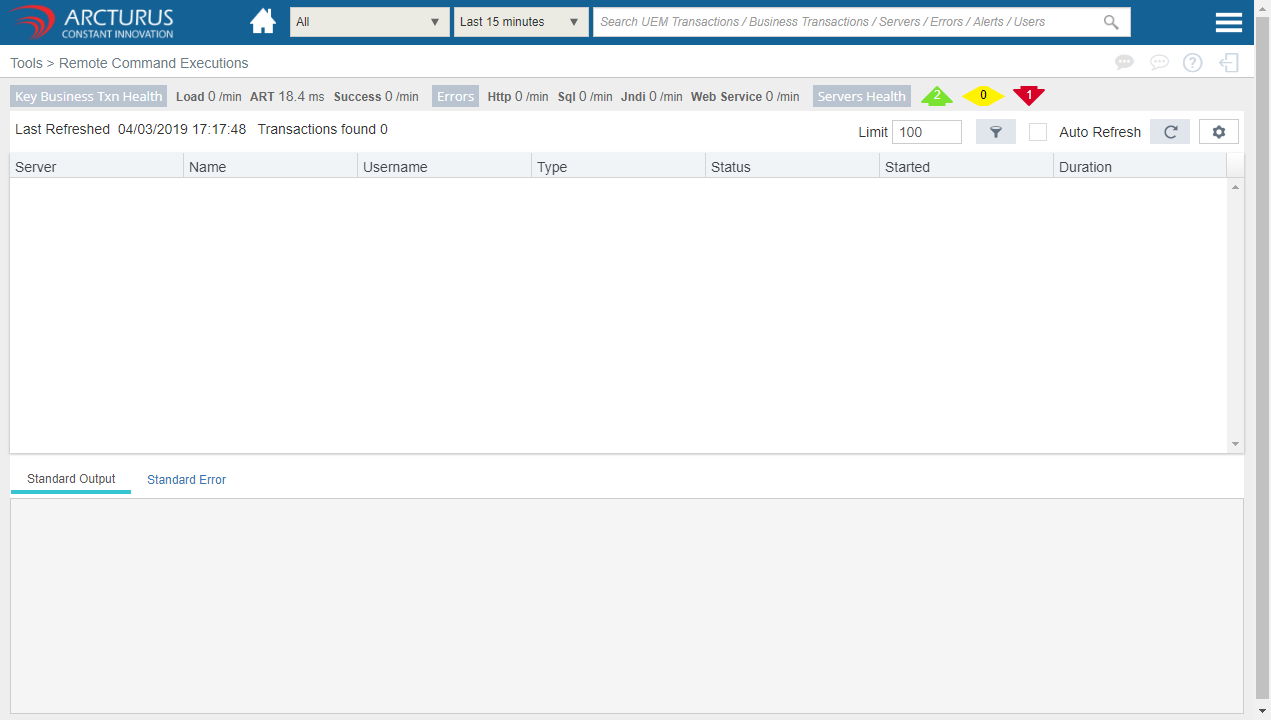
Open Remote Commands
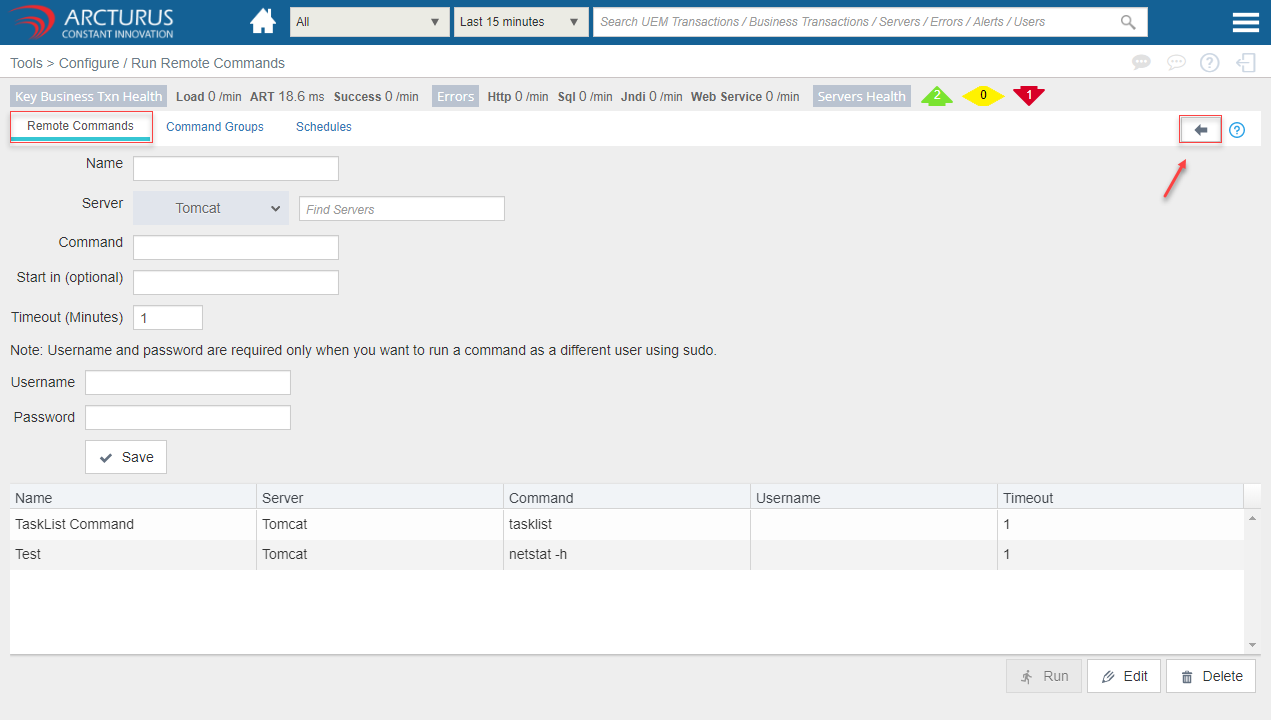
Click the "Menu" icon at the top right corner of the screen and select "Remote Commands".
Configuration
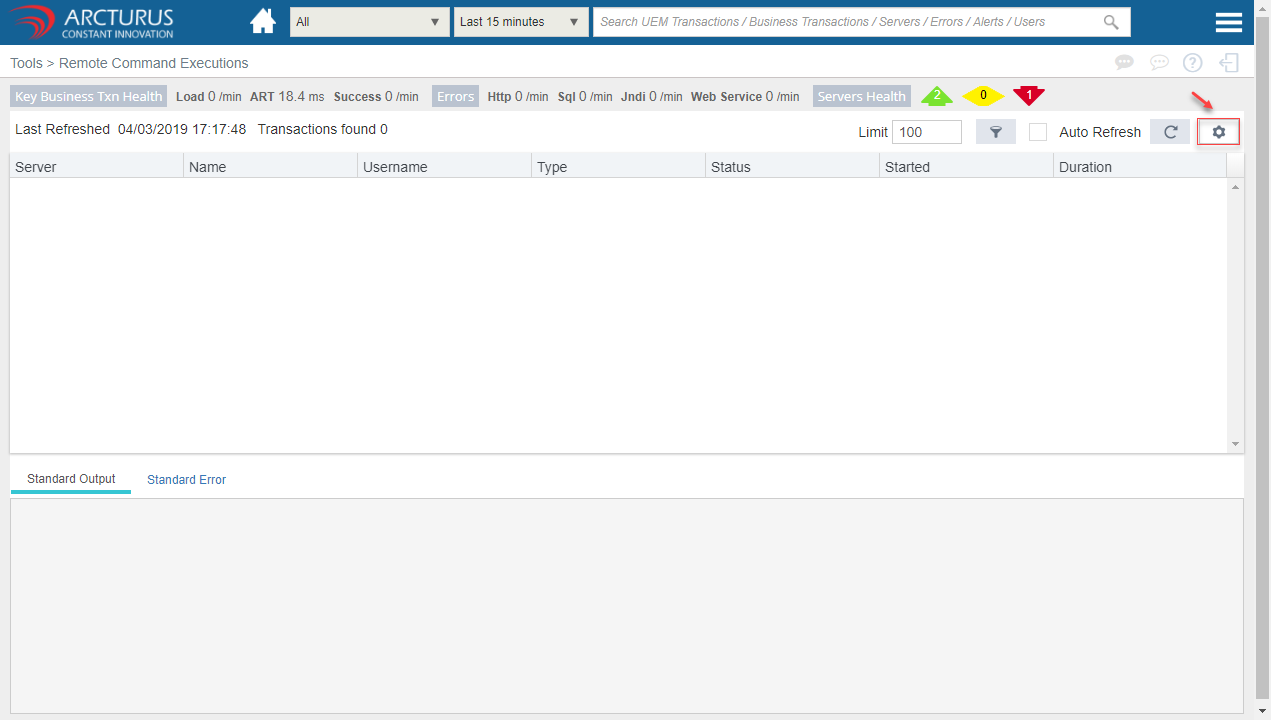
Click the "Settings" icon at the top right corner of the screen for configuration.
Commands
|
Name |
A unique name to identify the command in Applicare console |
|
Server |
Applicare agent which will be running this command |
|
Command |
Script or command to execute |
|
Start in (optional) |
Specify the path from where the command should execute |
|
Timeout (Minutes) |
Applicare will automatically terminate the process if it does not complete by the number of minutes specified here |
|
Username (optional) |
You can execute the commands as a specific user on the target server. This can be overridden when executing commands manually. (Only supported on operating systems with sudo installed) |
|
Password (optional) |
Password of the user if you have specified a username. This can be overridden when executing commands manually |
Command configuration
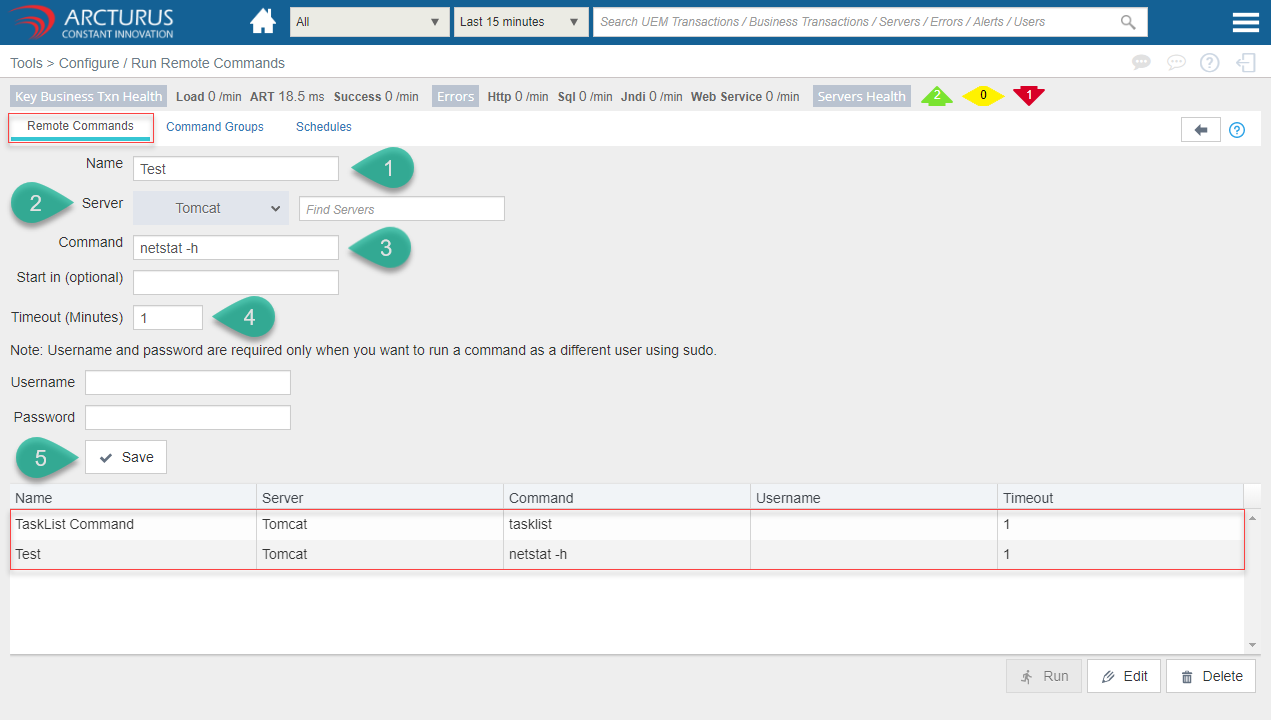
- Enter the command name.
- Select the server from the server dropdown.
- Enter the command to execute.
- Specify the timeout duration. By default, it will be 1.
- Click the Save button to save the settings.
- The below grid will display all the saved commands.
Run the command
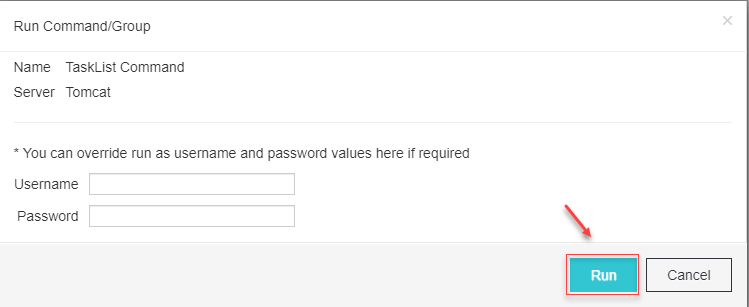
Select the command from the grid and click the "Run" button to run the command.

Provide the username and password if needed and click the "Run" button in the alert.
View the Execution Results
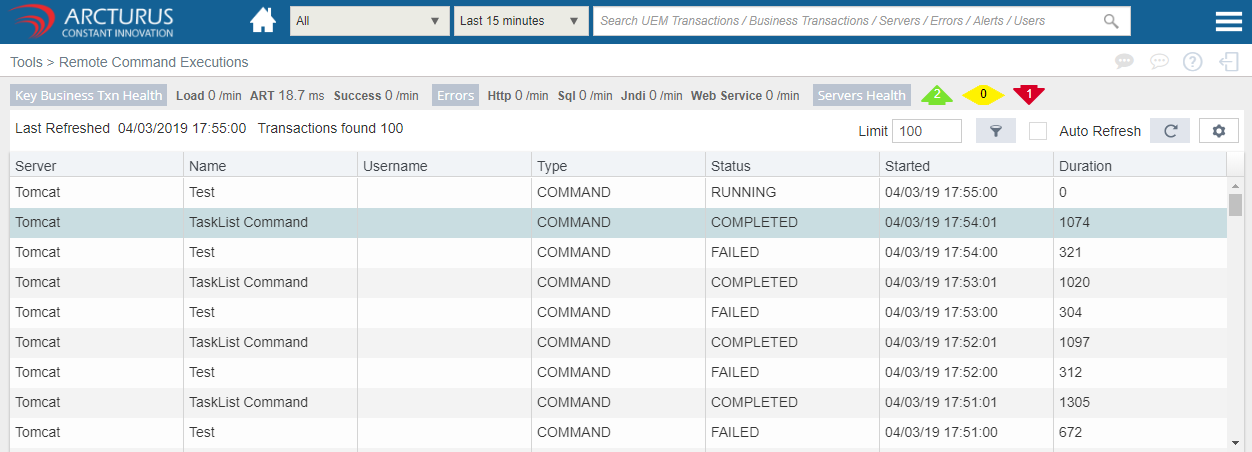
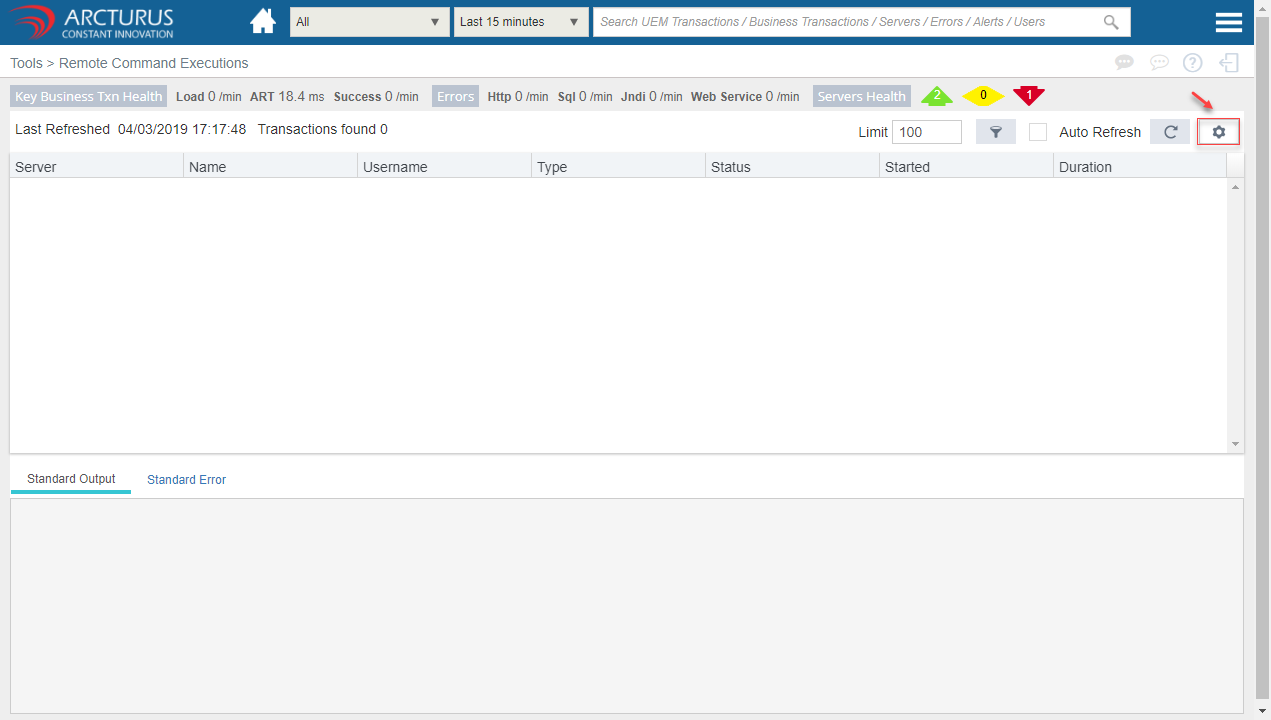
Click the "arrow" icon at the top right corner of the screen to view the execution results.
Individual command Results
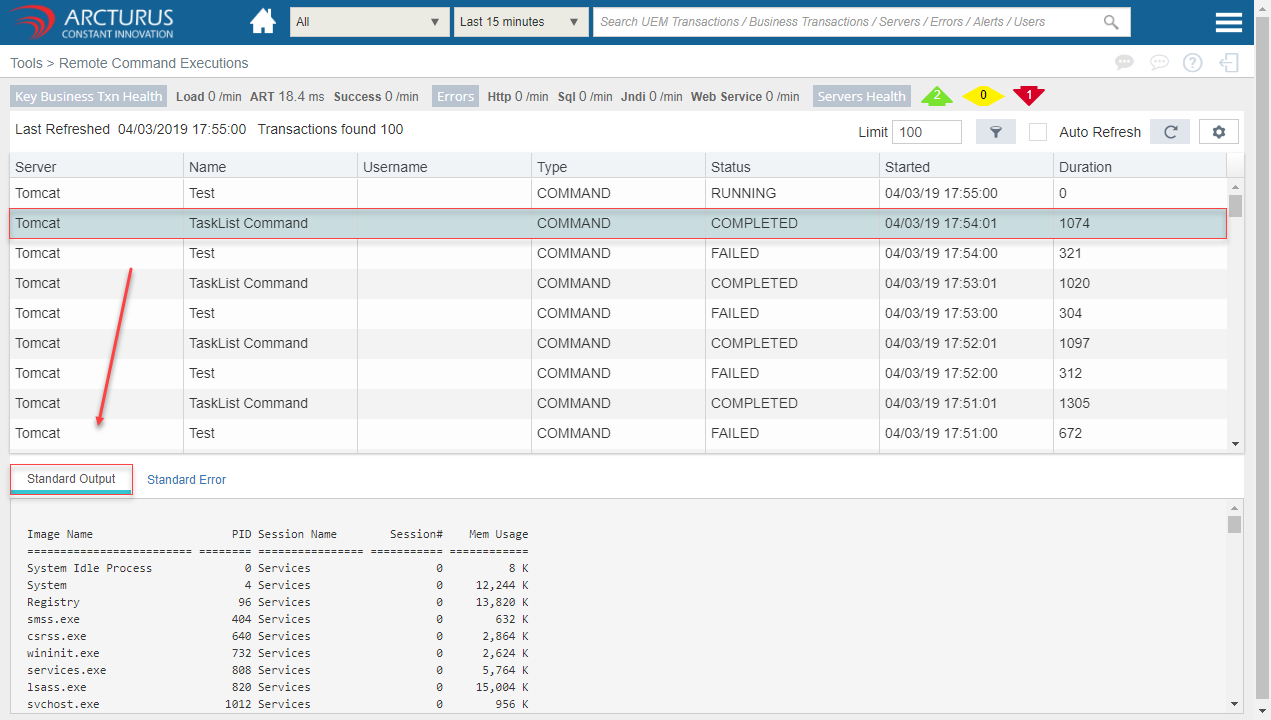
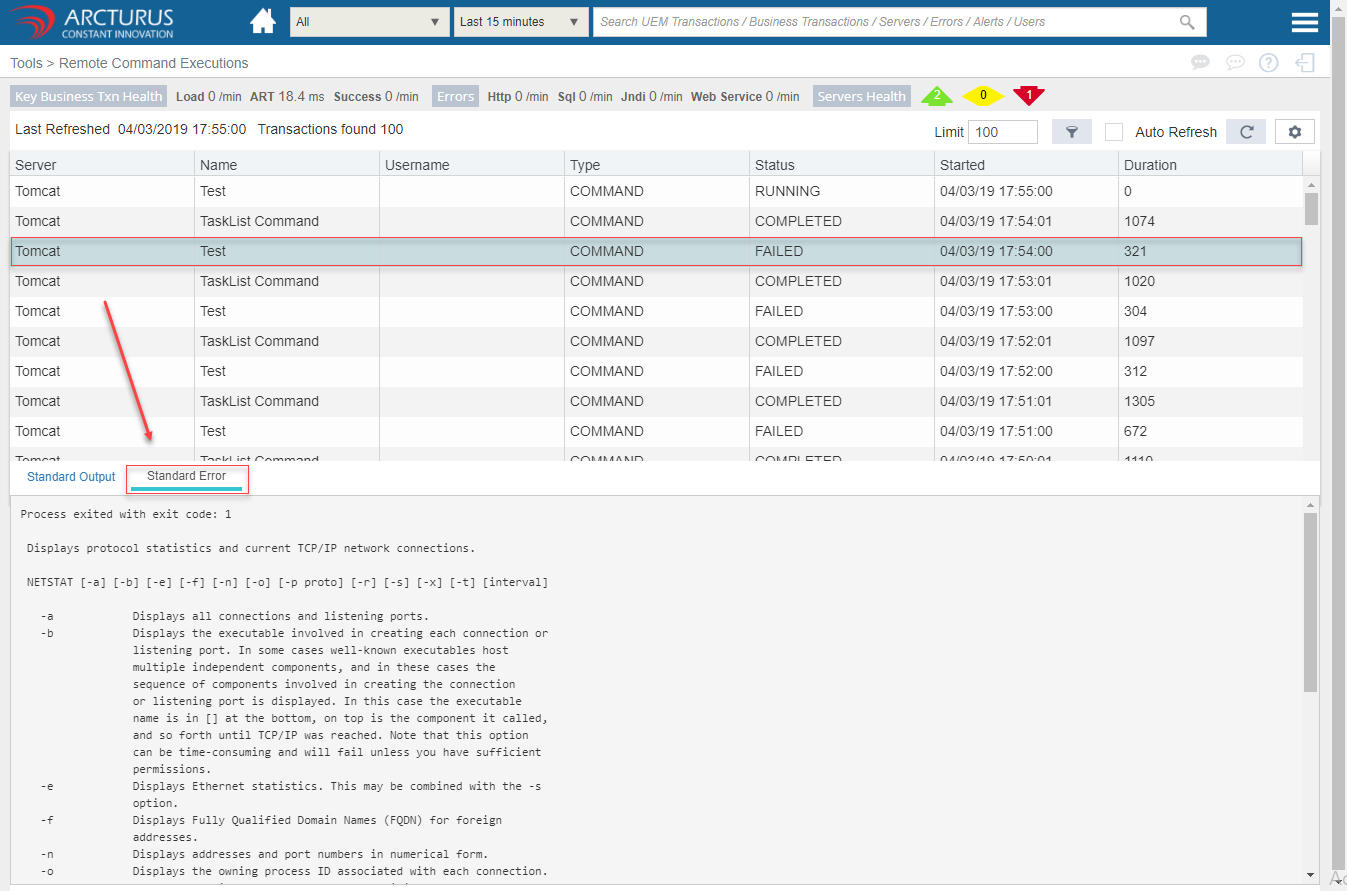
In the grid, the status column specifies whether the command is executed successfully or not.
Select the command from the grid to view the individual results.
Success Command
Failed Command
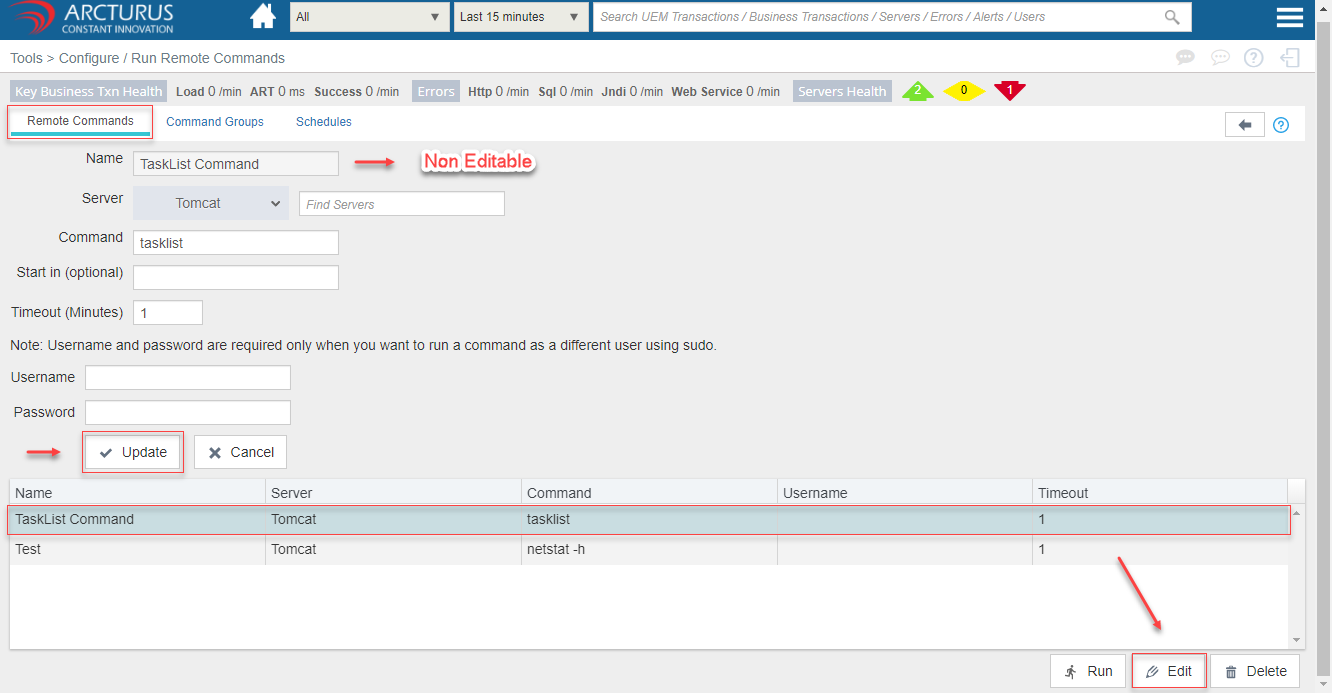
Edit command
- Select the row from the command grid and click the "Edit" button to edit the command details.
- Update the needed details and click the "Update" button to save the settings.
Note: Name field is non-editable.
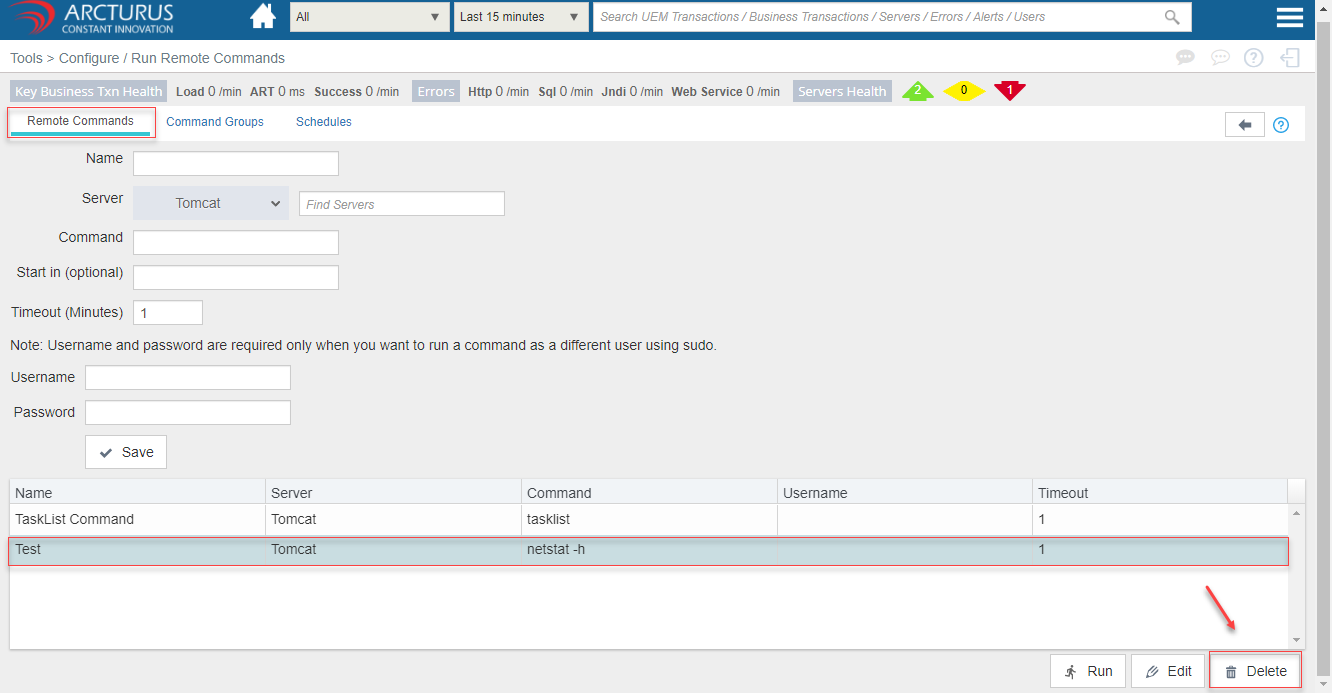
Delete command
- Select the row from the command grid and click the "Delete" button to delete the command.
Command Groups
You can group multiple commands on a server into a group. Commands in the group will be executed in the order specified. As with commands its possible to execute the group as a specific user on operating systems where sudo is available.
Command Group Configuration
Click the "Settings" icon at the top right corner of the screen for configuration.
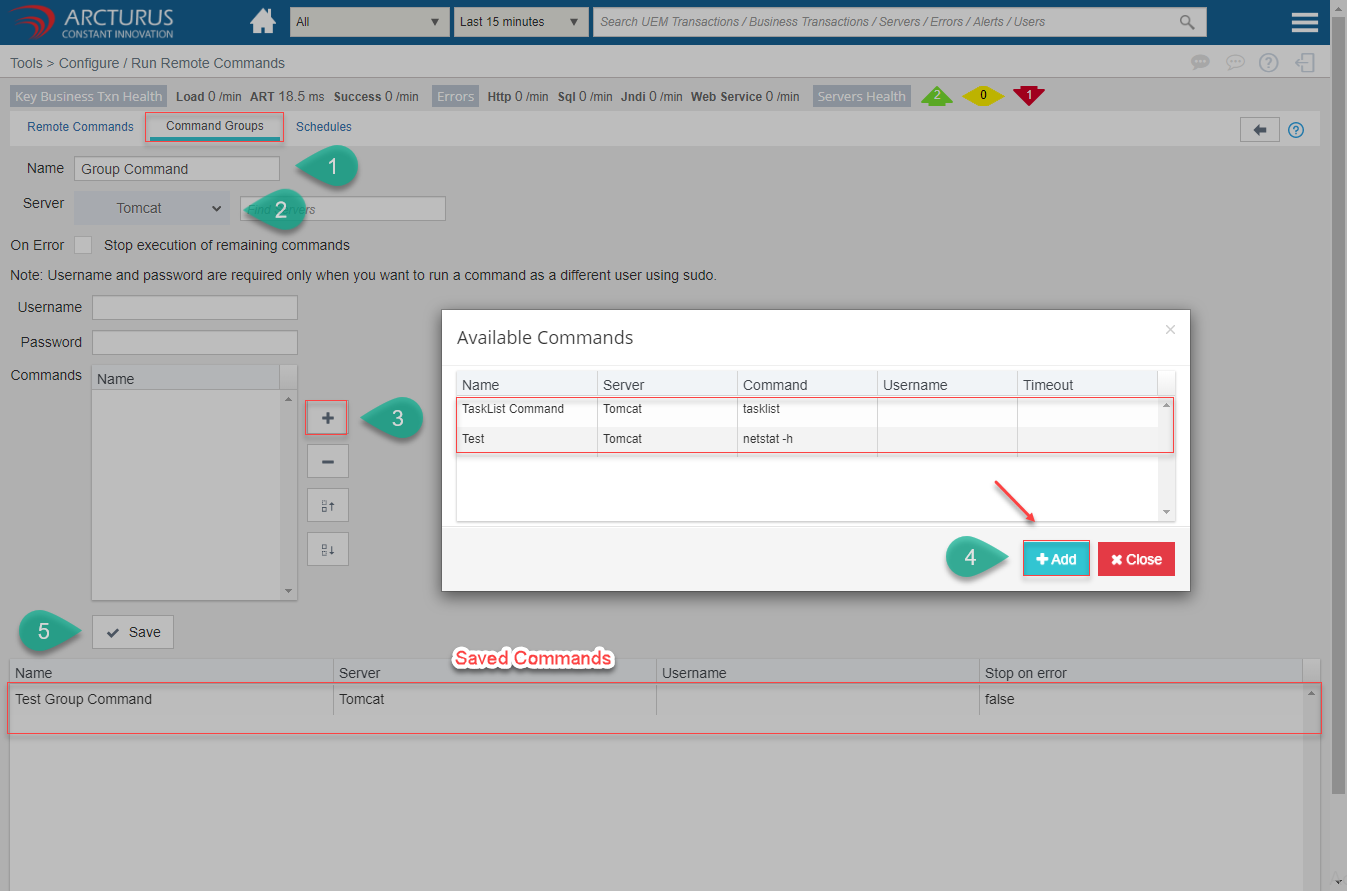
Command Group Configuration
- Enter the command name.
- Select the server from the server dropdown.
- Click the "plus" icon. It will display all the saved commands for that server.
- Select one or more commands from the grid and click the "Add" button to add the commands.
- Click the Save button to save the settings.
- The below grid will display all the saved commands.
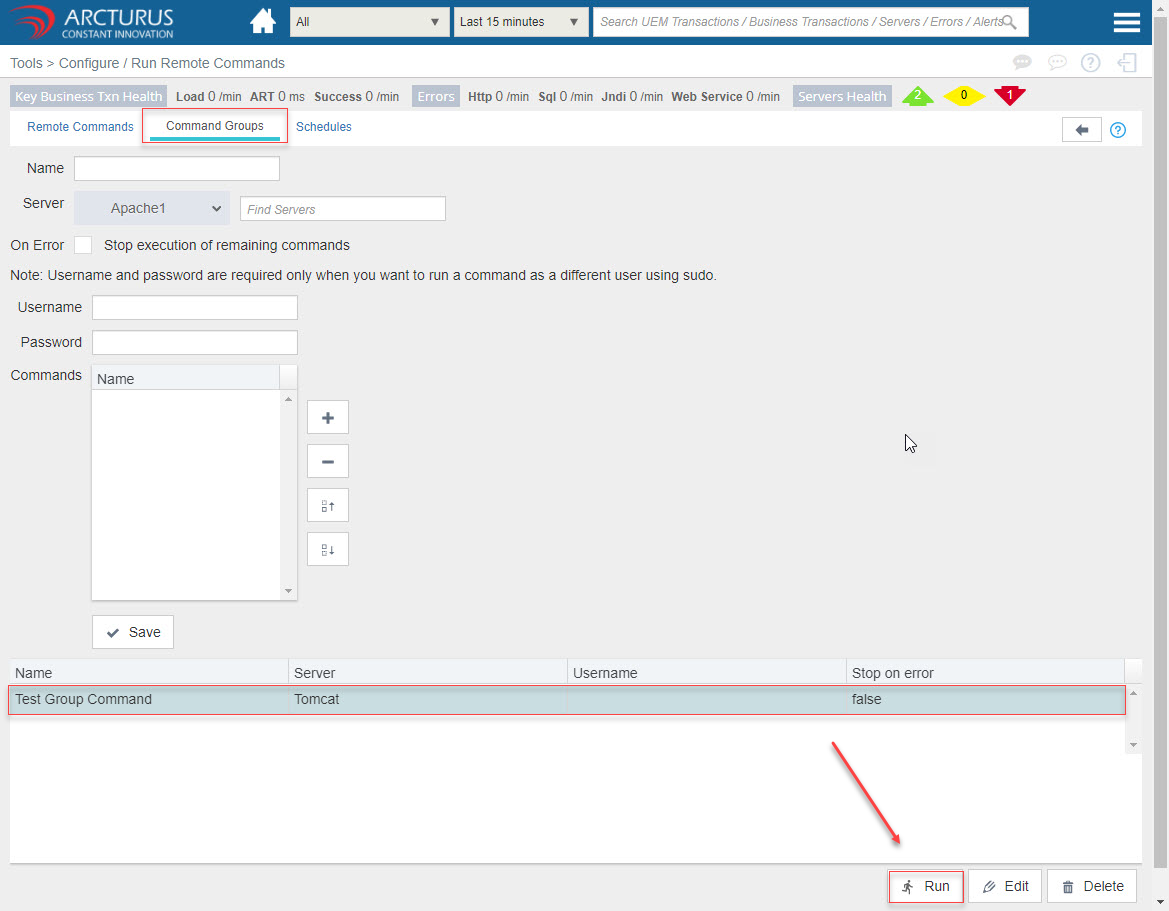
Run the Command Group
Select the command from the grid and click the "Run" button to run the command.
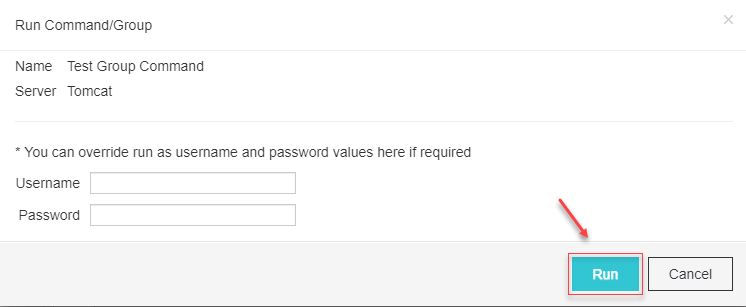
Provide the username and password if needed and click the "Run" button in the alert.
Click the "OK" button in the alert.

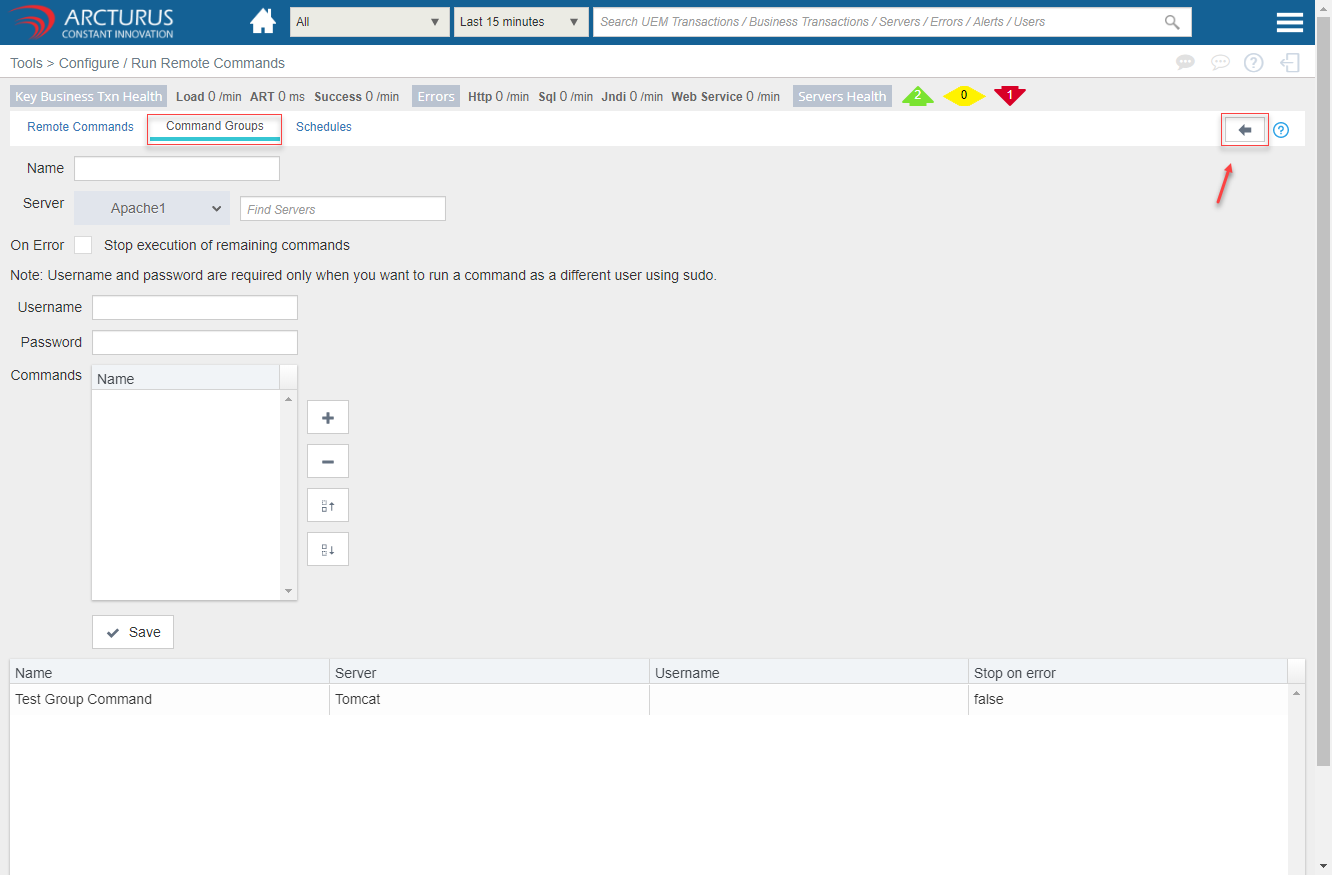
View the Execution Results
Click the "arrow" icon at the top right corner of the screen to view the execution results.
By Selecting the group command from the top grid will display the subgrid which contains individual commands for that particular group
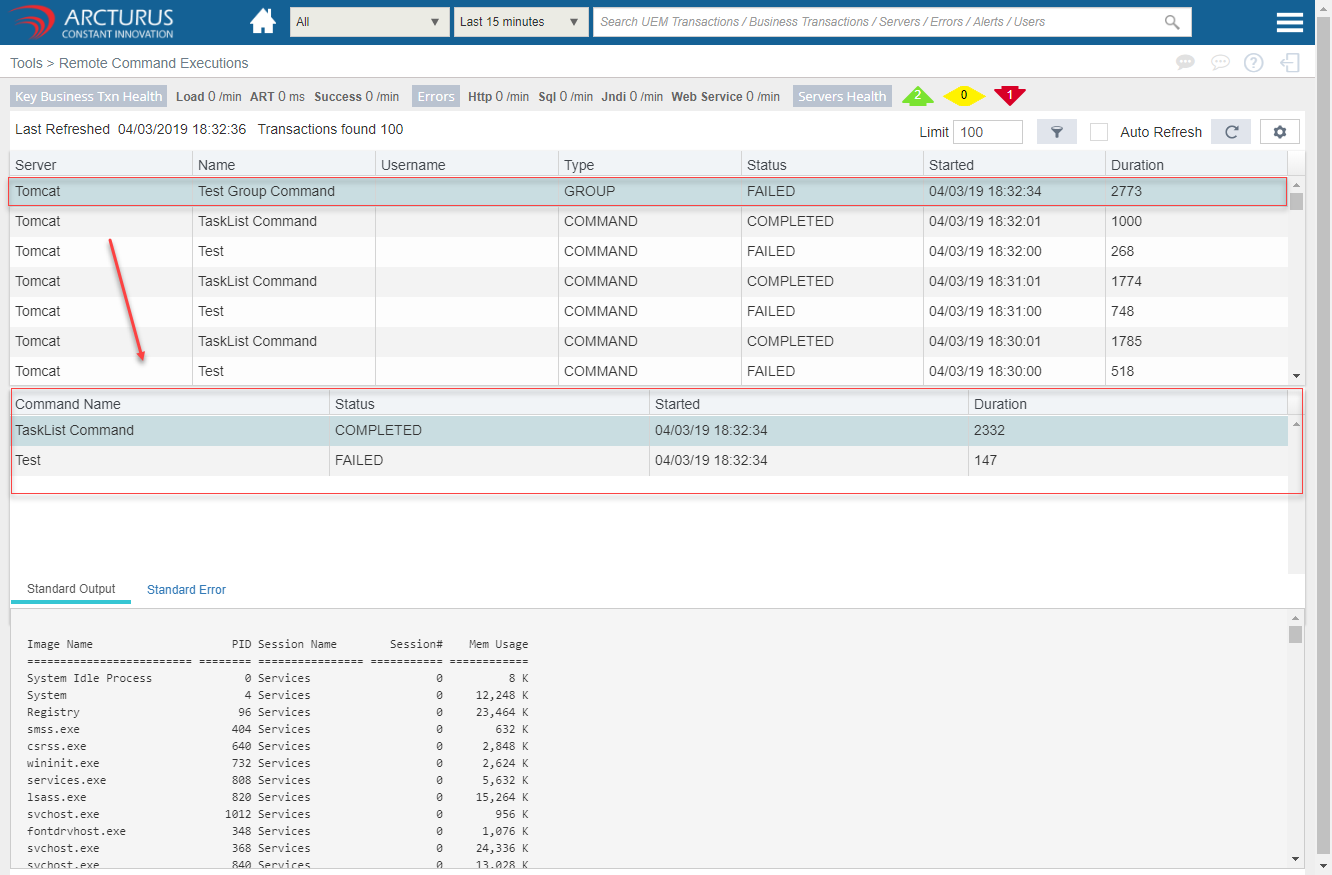
Command Group Results
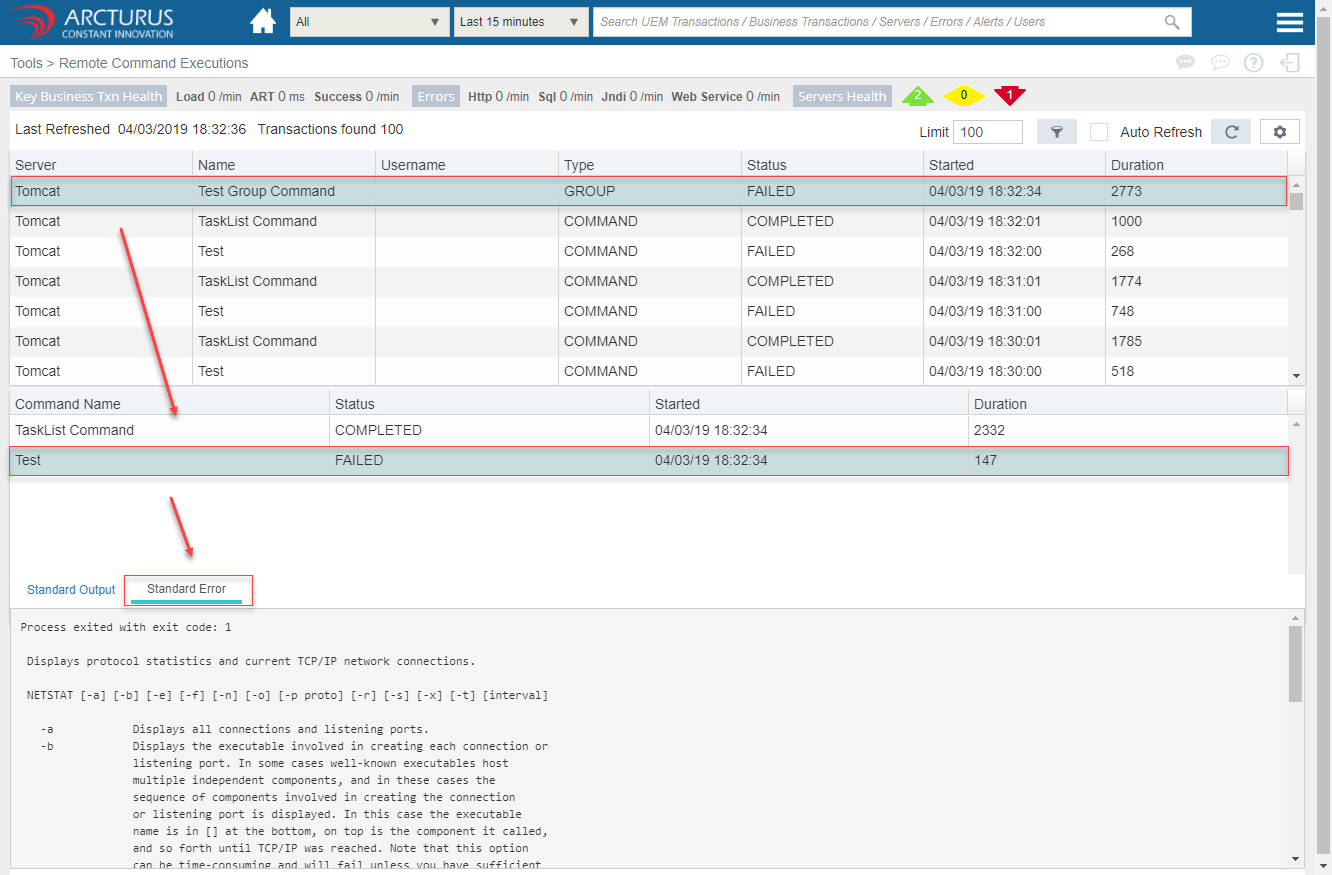
In the subgrid, the status column specifies whether the command is executed successfully or not.
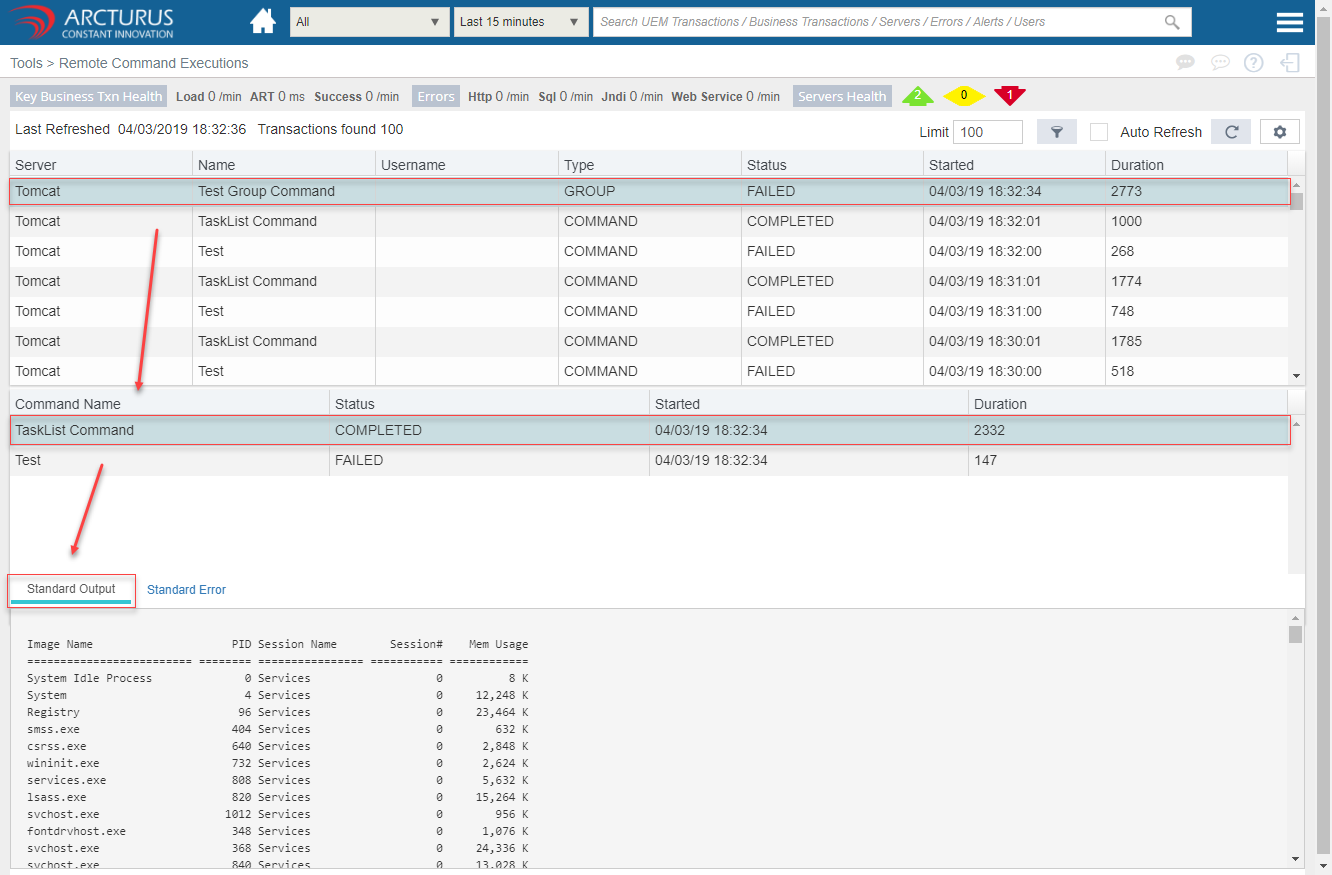
Select the command from the grid to view the Standard output or error for that particular command.
Success Command
Failed Command
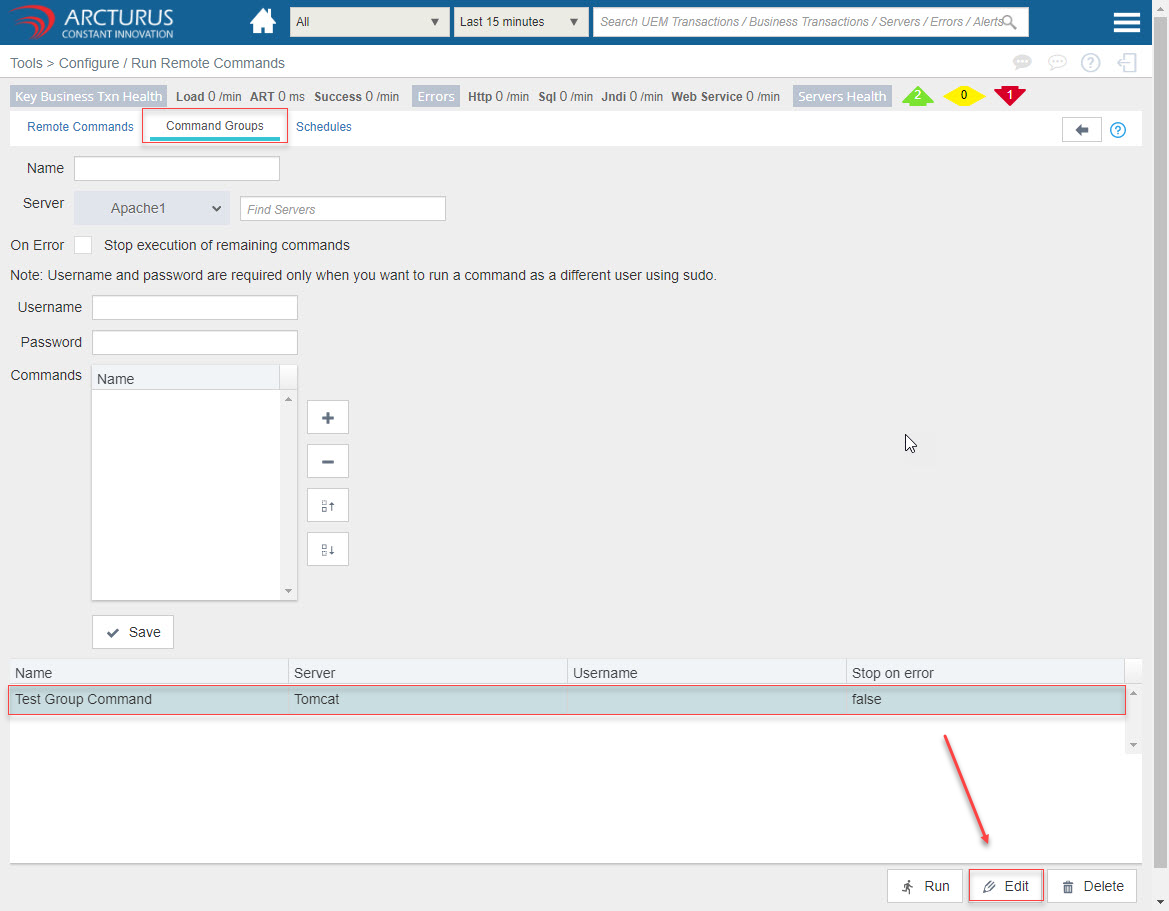
Edit command
- Select the row from the command grid and click the "Edit" button to edit the command details.
- Update the needed details and click the "Save" button to save the settings.
Note: Name field is non-editable.
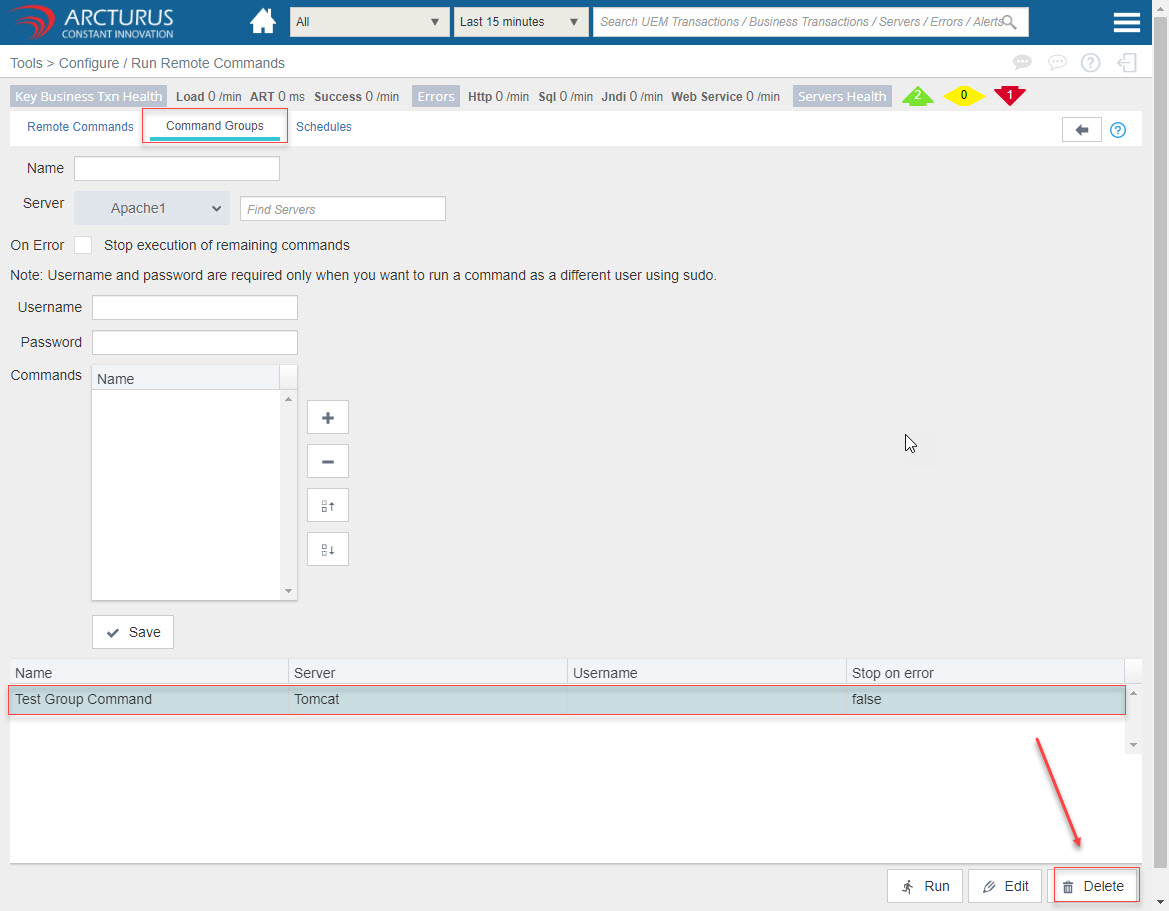
Delete command
- Select the row from the command grid and click the "Delete" button to delete the command.
Command Schedules
It's possible to schedule commands and command groups to run periodically using Cron like scheduling expressions.
Please refer the below link for Cron Expressions
https://helpdesk.arcturustech.com/hc/en-us/community/posts/360043215552-Cron-Expression
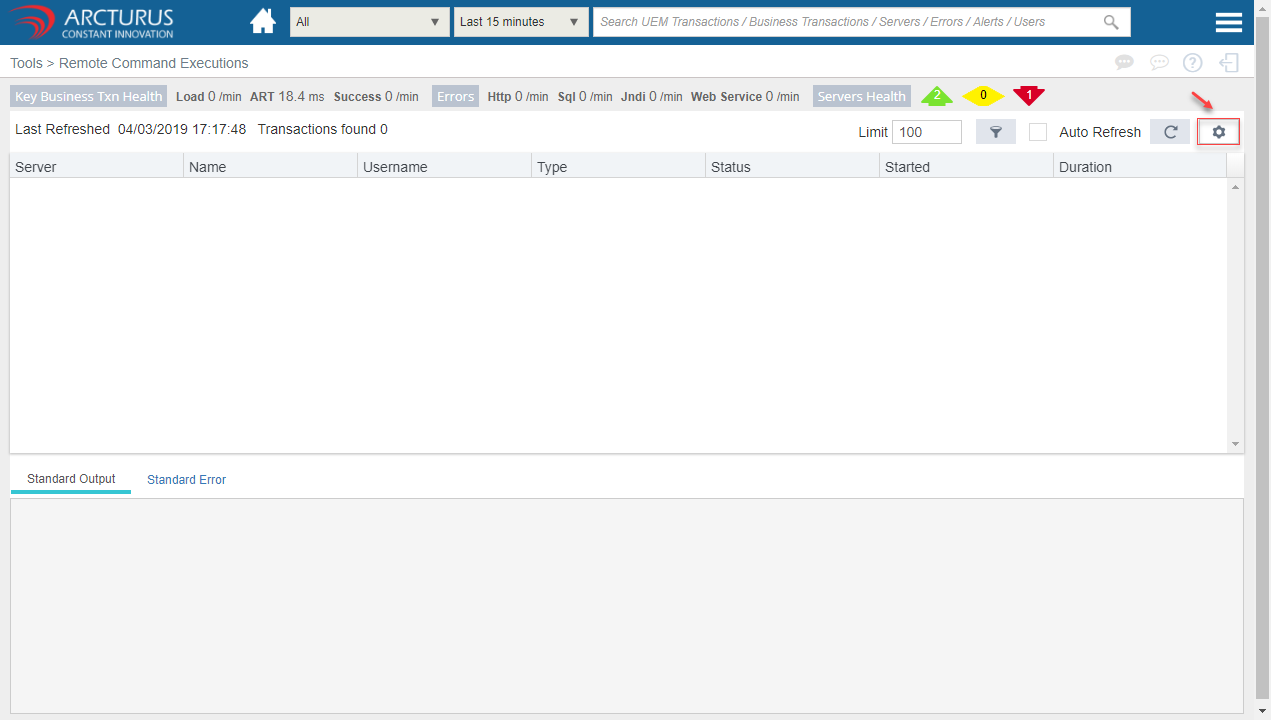
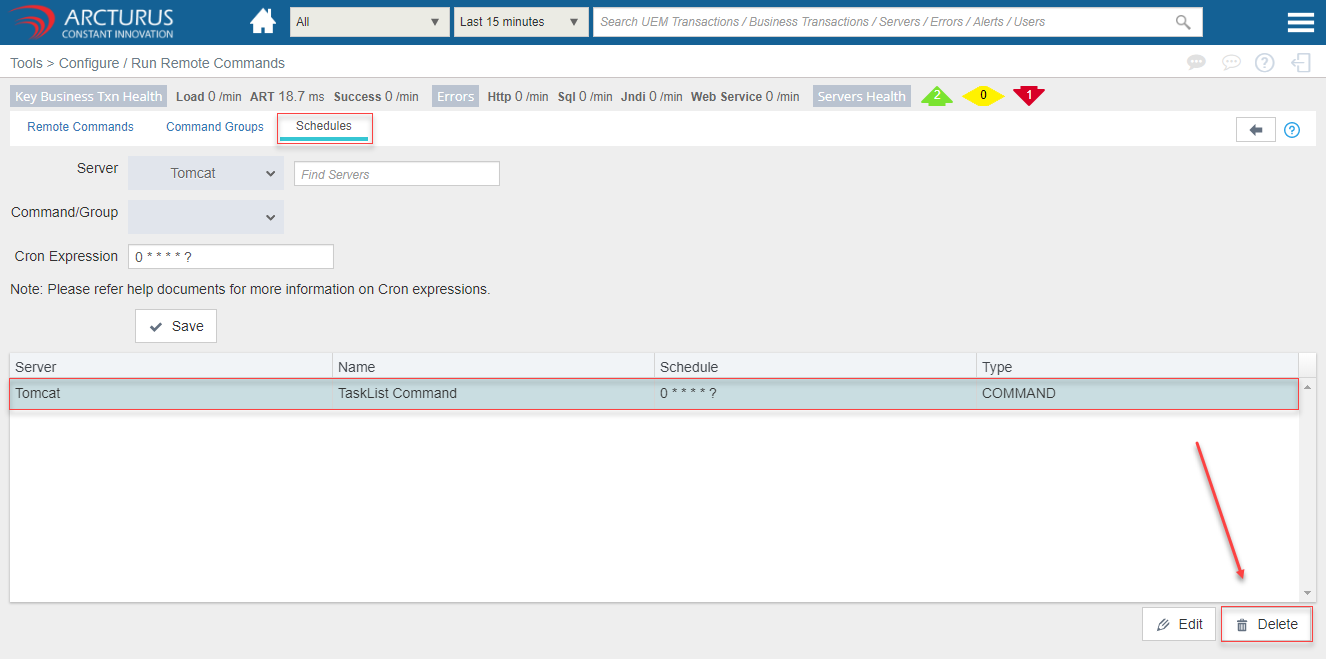
Click the "Settings" icon at the top right corner of the screen for configuration.
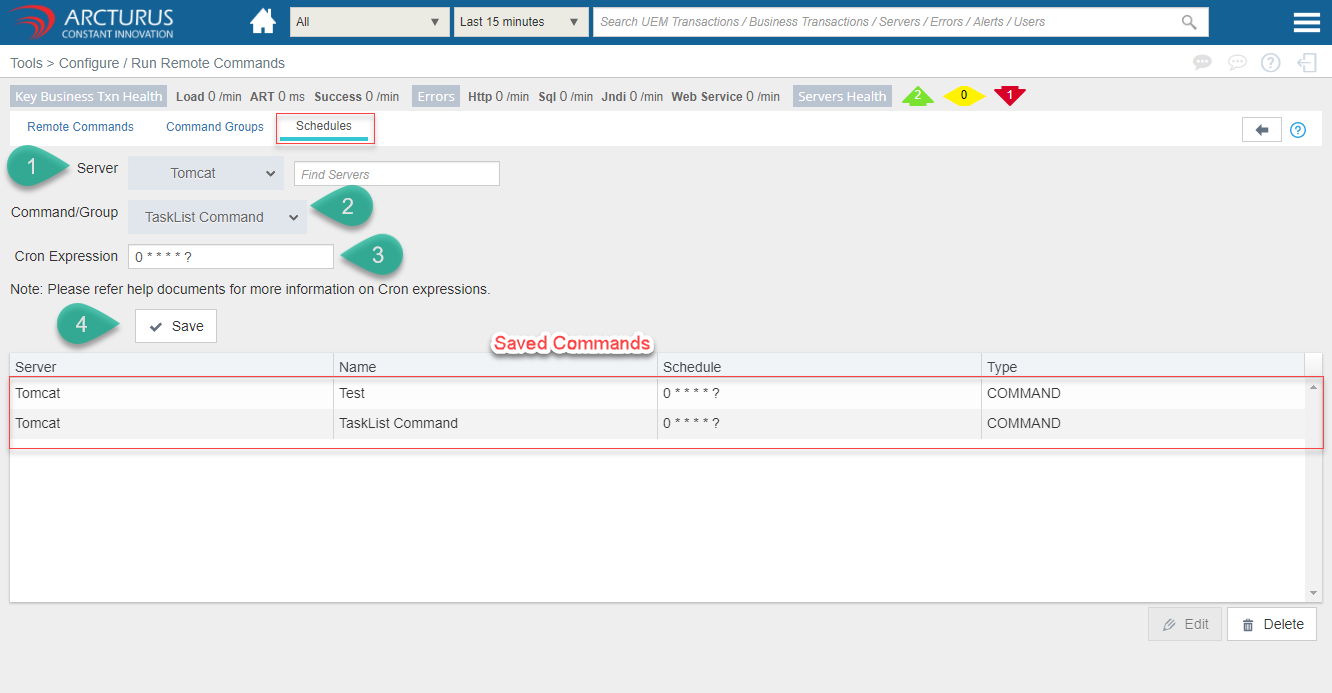
Command Schedule Configuration
- Select the server from the server dropdown.
- Select the commands from the Command/Group dropdown.
- Enter the cron expression.
- Click the "Save" button to save the settings.
- The below grid will display all the saved commands.
View the Execution Results
Click the "arrow" icon at the top right corner of the screen to view the execution results.


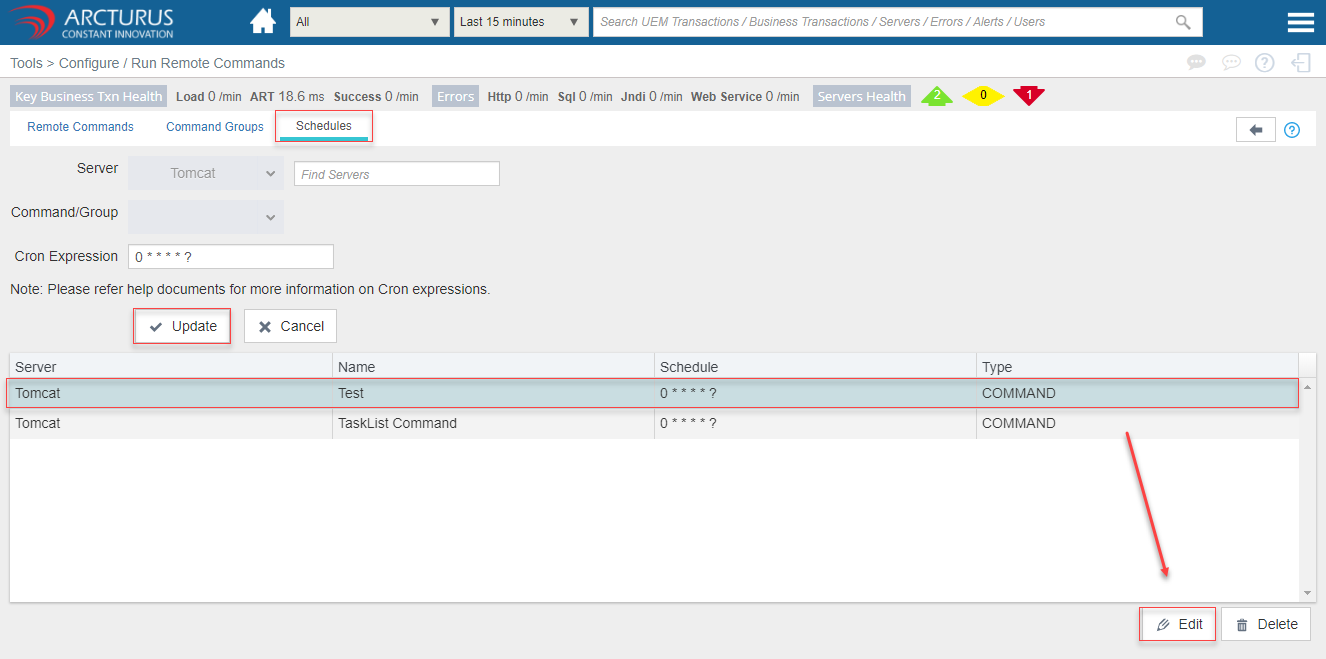
Edit command
- Select the row from the command grid and click the "Edit" button to edit the command details.
- Update the needed details and click the "Update" button to save the settings.
Delete command
- Select the row from the command grid and click the "Delete" button to delete the command.
Please sign in to leave a comment.
Comments
0 comments