
AWS RDS MS SQL Monitor

Ports
Applicare server - any port can be chosen for this at the time of install. This port should be accessible from outside. The default is 8880.
Applicare standalone agents (MS SQL server monitoring) - any port can be chosen at the time of install. The default is 9880.
Applicare database server - Any open port can be chosen for either of these - MySQL (default 3306), Oracle (default 1521) or Derby (default 1527)
Communications
Applicare Server -> Applicare agent
Applicare Agent -> Applicare server
Applicare Agent -> Applicare Database (any port can be assigned to this)
Java Dependency
Java 1.8 for Applicare server and Java 1.6 or above for Applicare Agents.
Admin or root User access
All our agents on Windows should be run with Administrator privileges.
AWS RDS MS SQL Configuration:
- MS SQL server should be accessible from Applicare Agent.
- Applicare Agent and MS SQL Time zone must be the same.
- SQL Server Authentication mode must be enabled in MS SQL.
- Set the MS SQL Trace Files Retention Period to 0 minutes. This will be applied to all the trace files in the AWS RDS MS SQL server.
- Make sure "db_datareader" and "Grant Alter Trace" permission is available for MS SQL user.
- We do require super user privileges for MS SQL user to monitor MS SQL Server.
Configuring the Trace file retention period in AWS RDS MS SQL Server.
The trace file retention period will be specified in minutes. By default, AWS will have the trace file retention period to 7 days. We need to modify it to 0 minutes.
1. Query to view the trace file retention period:
- exec rdsadmin..rds_show_configuration;

2. Query to set the trace file retention period to 0 min.
- exec rdsadmin..rds_set_configuration 'tracefile retention', 0;
Creating User and assigning Privileges:
1. Create a new user with SQL server authentication. We do require super user privileges for MS SQL user.
Query:
CREATE LOGIN <new_user> WITH PASSWORD = '<password>';
Example: CREATE LOGIN testuser WITH PASSWORD = 'testpass';
2. Give "db_datareader" permission for the user for the database which we are going to monitor.

3. "Grant Alter Trace" permission for the user which we are going to use for DB monitoring.
Query:
Use master
Go
Grant Alter Trace to <new_user>
Example:
Use master
Go
Grant Alter Trace to testuser
Installing Applicare Stand-alone Agent Application
1. First, you will have to build the stand-alone collector. Once you install Applicare you can build
the stand-alone agent by running
<ApplicareServer Install Dir>/agent/Standalonecollector/build/ build_collector.bat
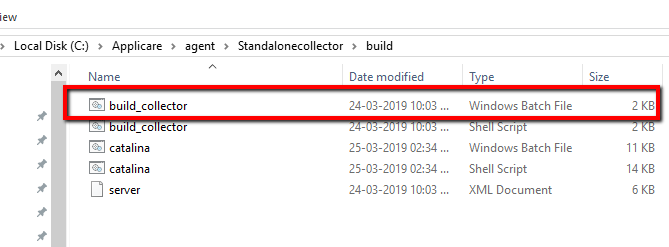
This will create a new folder,
<Applicare Server Install Dir>/agent/Standalonecollector/Applicare
and,
<Applicare Install Dir>/agent/Standalonecollector/Applicare.jar
2. If you are going to deploy the agent in the new machine then copy the "Applicare" folder or "Applicare.jar " from the Applicare server machine to agent machine and extract in any directory.

3. Follow step 2 for multiple agents.
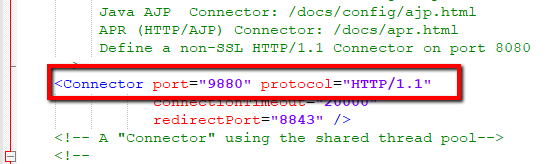
4. Please note that the agent by default runs on port 9880. If needed you can change the port number by
modifying the agent server.xml file.
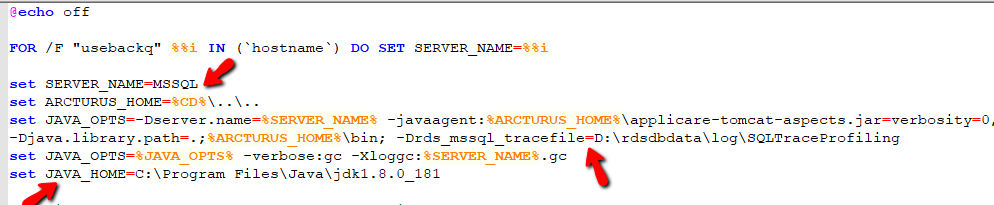
5. Set "SERVER_NAME", "JAVA_HOME" and "rds_mssql_tracefile" jvm argument property in the agent "Catalina.bat" file before starting the agent.
Go to the path Applicare/server/bin and edit Catalina.bat and set the "SERVER_NAME" &
"JAVA_HOME" and "rds_mssql_tracefile" argument and save the file.
SERVER_NAME - You can give any name without spaces.
Note: For every agent, the SERVER_NAME should be unique.
JAVA_HOME - Java JDK path of the Agent machine.
-Drds_mssql_tracefile=D:\rdsdbdata\log\SQLTraceProfiling
Note: From the above JVM argument
- Tracepath ="D:\rdsdbdata\log\"
- TraceFileName="SQLTraceProfiling" (Don’t use “_” in the trace file name)
- For every agent we need to provide different trace file name in the above jvm argument
6. Execute "SetAsDBMonitor.bat" script before starting the agent.
Go to the Agent "Applicare" directory in the Agent machine and execute the script.
Running Applicare server and Agent:- (Run as Administrator)
To start Applicare Server:
1. Go to the Aplicare server installed directory.
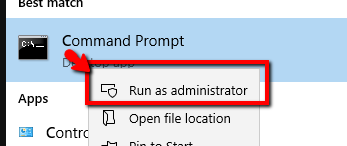
2. Open a command prompt in "Administrator mode".
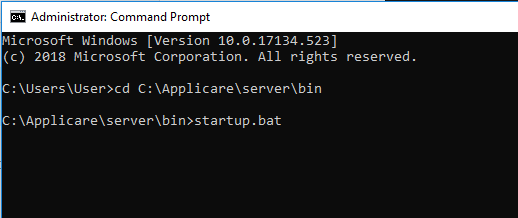
3. Go to the path <ApplicareServerHomeDir>/server/bin.
4. Execute the "startup.bat/sh" script file.
For Windows execute "startup.bat" and for Linux execute "startup.sh" script file.
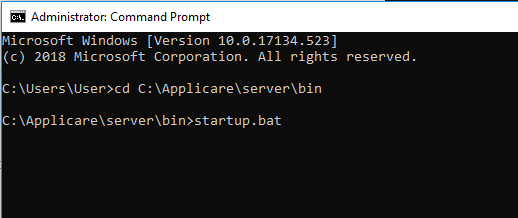
To start Agent:
1. Go to the Aplicare Agent installed directory.
2. Open a command prompt in "Administrator mode".
3. Go to the path Applicare/server/bin.
4. Execute the "startup.bat" script file.
Adding the Agent in Applicare server:
1. Adding the details in the Applicare overview screen.
JDBC URL: jdbc:sqlserver://EndpointVal;databaseName=<dbname>
Username: SQL server login user name.
Password: SQL server user login password.

Test Connection:

2. Add the App name to the Standalone agent.

Please sign in to leave a comment.
Comments
0 comments