
Recording a JMeter Traversal Script for the JPetStore application using JMeter proxy

Prerequisites
- Apache JMeter 2.11
- Java6 or later
- Mozilla Firefox or IE
Add a Thread Group
To add a Thread Group to the Test Plan, right-click on Test Plan, then click Add -> Threads(Users) -> Thread Group, as shown below:

Set the Thread Group property values based on your load test, as shown in the following:

Add HTTP Request Defaults
Right click on Thread Group, then click Add -> Config Element -> HTTP Request Defaults.

Fill in the Server Name or IP field with the name or IP address of the web server you want to test.

Add HTTP Cookie Manager
If your web server uses cookies, you can add support for cookies by adding an HTTP Cookie Manager to the Thread Group. Right click on Thread Group, then click Add -> Config Element -> HTTP Cookie Manager.

Add a Recording Controller
Right click on Thread Group, then click Add -> Logic Controller -> Recording Controller. The Recording Controller is where you may record the HTTP Request samplers.


Add HTTP(S) Test Script Recorder
To add the HTTP(S) Test Script Recorder to the WorkBench, right-click on WorkBench, then click Add ->Non-Test Elements -> HTTP(S) Test Script Recorder.


Note: Items that are added to the WorkBench do not get saved with the rest of the test plan. If you want to save your WorkBench, right-click on WorkBench, then click Save Selection As..., and save it to your desired location. After it is saved, you may add it to any test plan that you have open by using the Merge menu item and selecting your saved WorkBench.
The default port of the HTTP(S) Test Script Recorder proxy is 8080. This can be changed to 8088 by changing Port Setting under Global Settings.
Including or Excluding URL Patterns (Optional)
In the HTTP(S) Script Recorder, you may add URL Patterns, written as regular expressions, to include or exclude when you record. This can be useful to either include only the types of content you want to request (such as .html or .php files) or to exclude the types of content you do not want to request (such as .jpg, .png, or .js files).
To add a URL Pattern, click the Add button under the URL Patterns to Include or URL Patterns to Exclude section, then click on the top of the white area in the section. You should now be able to type in a pattern. Repeat the process to add more patterns.
Example: URL Patterns for webpages
.*\.html
.*\.php
.*\.htm
.*\.shtml
Example: URL Patterns for images
.*\.png
.*\.jpg
.*\.gif
Here is a screenshot of the URL Patterns to Exclude for excluding images:

Adding Items to the Script Recorder (Optional)
Adding JMeter items to a the HTTP(S) Test Script Recorder will make recorded requests inherit the added item. For example, if we add a Timer item to the Script Recorder, the Timer will be added to each HTTP Request that is recorded. When the test is run, the timer will cause each test thread to wait before performing the HTTP Request.
Right-click on HTTP(S) Test Script Recorder, then click Add -> Timers -> Constant Timer.

You may configure the thread delay to whatever you decide.

Suppose that you want to simulate a user clicking on a different page every 3 seconds. Setting the thread delay to 3000 ms will accomplish this by adding a 3 second delay to each HTTP Request that is recorded.
This is just one example of how you can add items to the Script Recorder to help create a test plan that performs the tests that you desire.
Start Recording
Clicking on the Start button, on the bottom of the Script Recorder window, will start the JMeter proxy server which will be used to intercept and record browser requests.
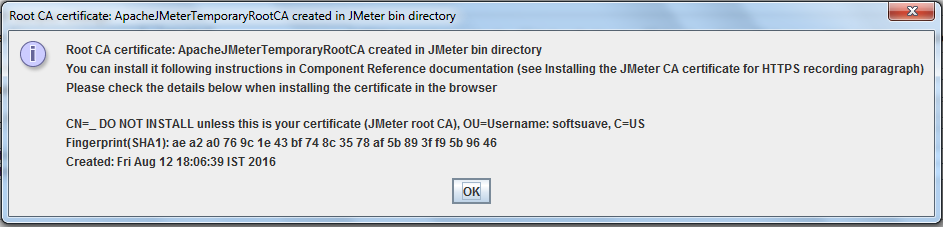
The first time you attempt to run the recorder, it may display an error saying that it can't start because a certificate does not exist. Click OK, then click Start a second time. You should see a message that says that a temporary certificate named ApacheJMeterTemporaryRootCA.crt has been created in the JMeter bin directory. Click OK and continue.
Configure Firefox To Use JMeter Proxy
We use Firefox as our browser when using the JMeter HTTP(S) Test Script Recorder because, unlike Chrome and some other browsers, it allows you to override system-wide configuration for its proxy settings.
Configure Firefox to use localhost (127.0.0.1) on port 8088 as its proxy for all traffic by following these steps:
- Open Firefox
- Go to Options
- Click on Advanced -> Network
- In the Connection section, click on Settings...
- Select the Manual proxy configuration radio button
- Set HTTP Proxy to localhost and Port to 8088
- Check Use this proxy server for all protocols
- Click OK and exit the Preferences menu
When Firefox is configured to use JMeter's Script Recorder as a proxy, it will only work properly if the Script Recorder is running.
Configure IE To Use JMeter Proxy
Configure Internet Explorer to use localhost (127.0.0.1) on port 8088 as its proxy for all traffic by following these steps:
- Open IE
- Click on Tools
- Click on Internet Options
- Click on the Connections tab
- Click LAN Settings
- Check the Use a proxy server for your LAN checkbox
- Set Address to localhost and Port to 8088
- Click OK to save your LAN settings
- Click OK to close the Internet Options window
When IE is configured to use JMeter's Script Recorder as a proxy, it will only work properly if the Script Recorder is running.
Recording HTTP Requests
Now that our test plan's HTTP(S) Test Script Recorder is running and Firefox is configured to use it as a proxy, the HTTP requests that Firefox sends will be recorded. Let's test it out.
In Firefox, go to your server's homepage (the same server that you configured in your JMeter HTTP Request Defaults):
http://your_domain.com/     - http protocal
https://your_domain.com     - https protocol(SSL configured)
Now there should be a small expansion icon next to your Recording Controller. Click on it to expand and show the requests that it has recorded. You should see HTTP requests, depending on which URL Patterns you have included and excluded. Feel free to browse your site to record more requests.
Here is an example of what was recorded when visiting the JPetStore web application:

As you can see, a lot of requests were created. You may refine the list of HTTP requests by simply deleting unwanted entries here.
If you do not see any entries under your Recording Controller, you will want to review your URL Patterns in the HTTP(S) Test Script Recorder (Hint: Remove all includes and excludes to record everything).
Once you are done recording, click the Stop button at the bottom of the HTTP(S) Test Script Recorder window. Note that Firefox will no longer be able to reach any pages because it is configured to use port 8088 as a proxy--configure it to use No proxy if you want to function normally.
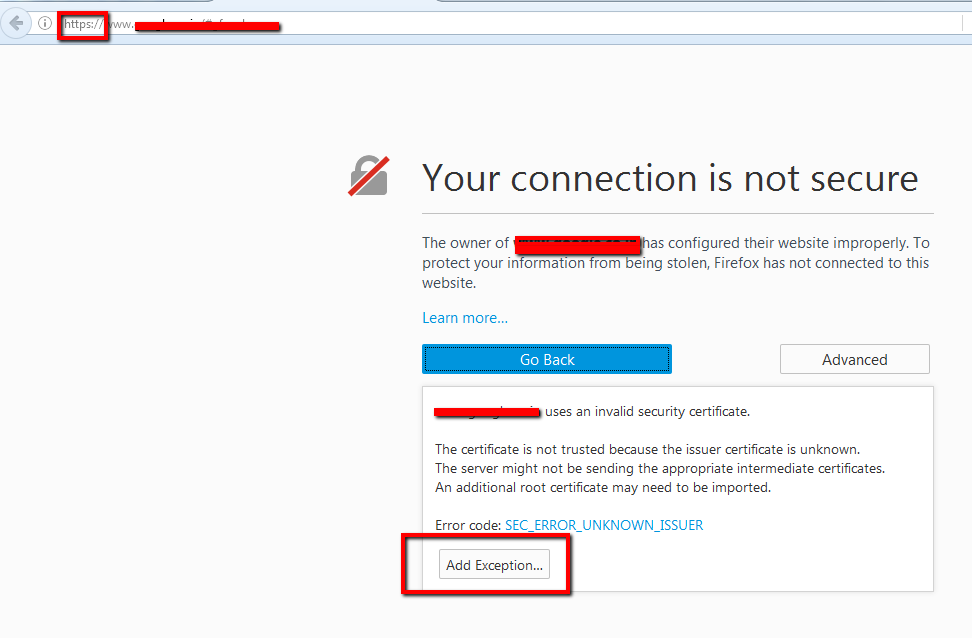
Note: If the application is HTTPS configured, in the browser side you would get the below error message, so just click on the Add exception button. This message appears even if the application is using an authorized SSL certificate, because we have set the proxy server, and the certificate is from proxy server. This message will appear in first time only.
Add Aggregate Report
Right-click on Recording Controller, then click Add -> Listener -> Aggregate Report.

Add View Results Tree Graph
Right-click on Recording Controller, then click Add -> Listener -> View Results Tree.

Finally start the JMeter with various load parameters.


Note: If your web application sends the access token in the response header for the login page and passes it in every request, please refer to this link to parse and pass it correctly.
Jpetstore_web_page_traversal.jmx
Please sign in to leave a comment.
Comments
0 comments